iPhone and iPad
Aldus on iOS and iPadOS is the same app and the same library as every other platform — what differs here is how it behaves as a native iOS citizen: background audio, lock-screen controls, and the local-network permission prompt.
Install the beta
Section titled “Install the beta”Join the public Aldus beta on TestFlight, then install Aldus from the TestFlight app. Beta builds expire after 90 days; TestFlight will offer the next approved build when one is available.
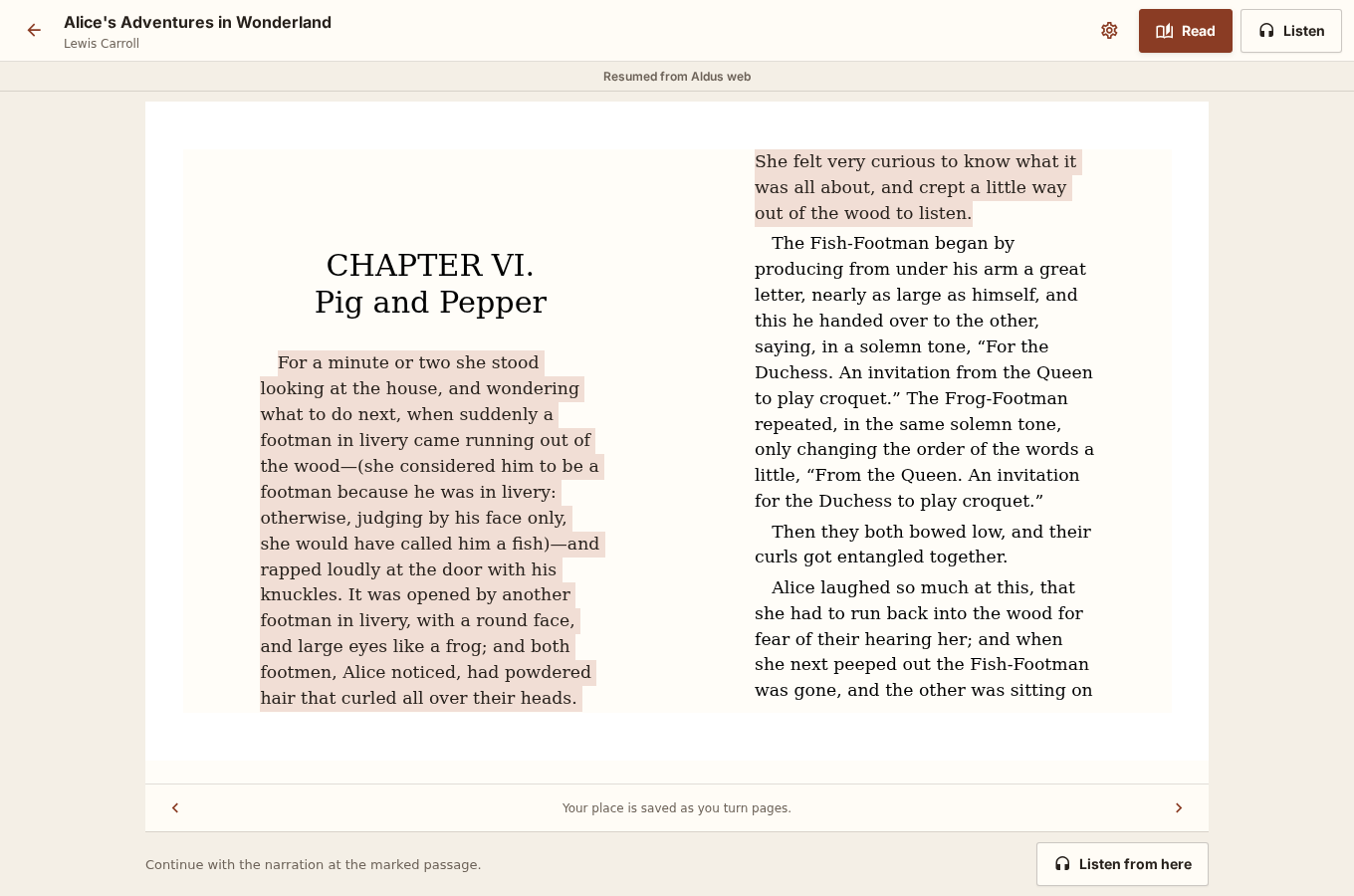
Open a title and choose Read or Listen. In the ebook, Aldus saves the first visible text location after the page settles and flushes it when you leave or background the app. In audio, it saves approximately every two seconds and immediately when you pause, leave, switch formats, or background the app.
Reading settings
Section titled “Reading settings”Open the reading-settings control to choose the publisher font, serif, sans, or OpenDyslexic; adjust text size, line spacing, margins, page color, and page-turning or continuous-scroll flow. All books saves the choices to your Aldus account and syncs them across devices. Choose This book when one edition needs its own settings without changing the rest of your library.
Continue in another format
Section titled “Continue in another format”When a title shows the Read & Listen indicator, a synchronized edition is available. Tap the headphones button to continue from the first visible synchronized passage. For a precise handoff, long-press a word, adjust the iOS text selection, and choose Listen from here. Aldus opens the player at that word when validated word timing is available. See Exact synchronization for the complete saving and precision contract.
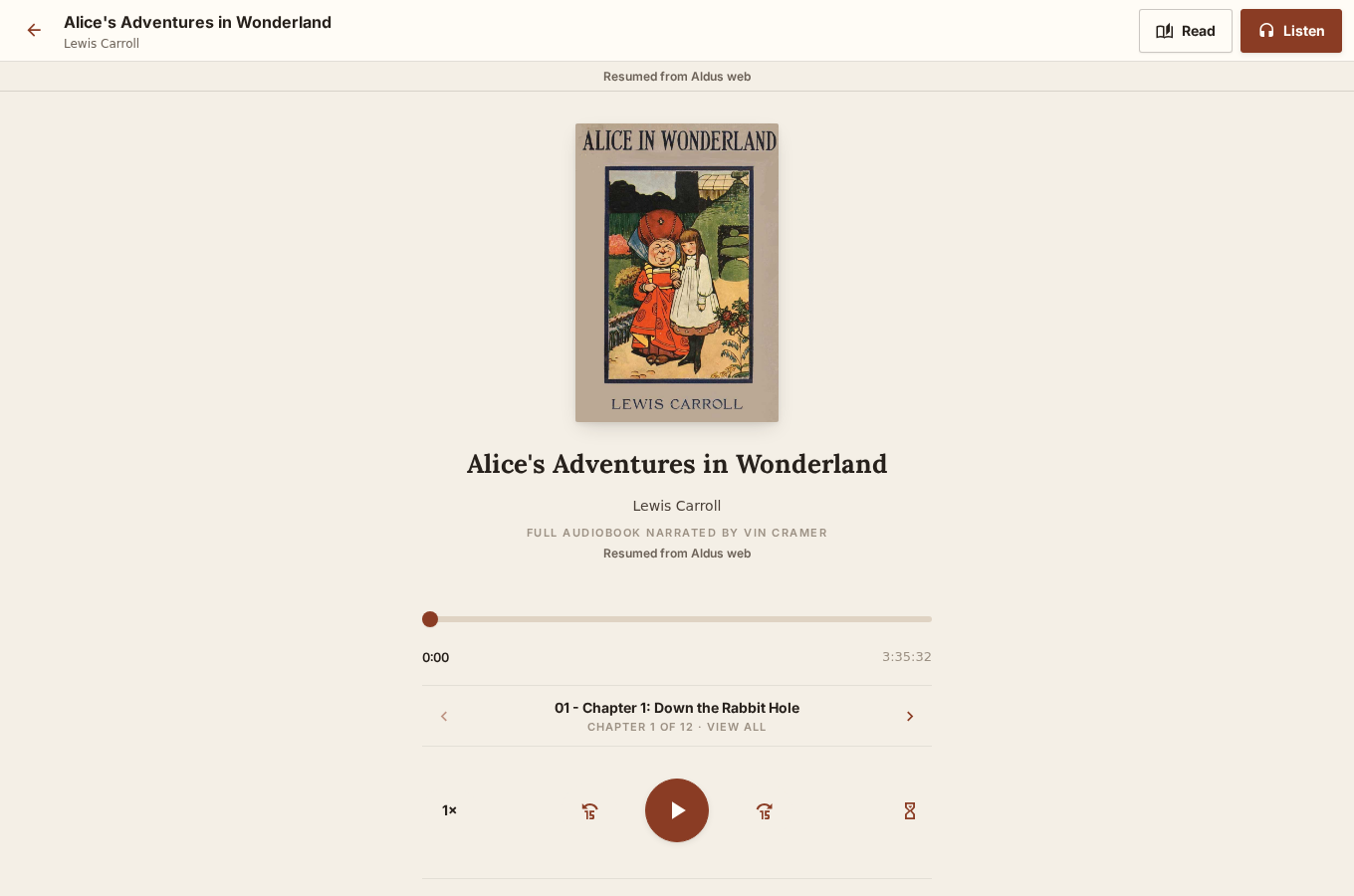
Background listening
Section titled “Background listening”Audio keeps playing when the screen locks or you switch to another app — Aldus configures the session for background playback on launch, so this isn’t something you need to turn on. Use the lock screen or Control Center’s media controls to pause, resume, or skip; they reflect the book and chapter you’re listening to.
Local servers
Section titled “Local servers”The first time you connect to a server on your home network, iOS will prompt for local-network access. Aldus asks for that permission only to reach the server address you connect it to — it doesn’t scan your network or discover other devices. If you decline the prompt, connecting to a local (http://192.168.x.x) server will fail until you grant it in Settings → Aldus → Local Network.
Keep the development app beside TestFlight
Section titled “Keep the development app beside TestFlight”Contributor builds use Aldus Dev (com.mahcks.aldus.dev). TestFlight keeps
Aldus (com.mahcks.aldus). The apps have separate local settings and downloads;
sign in to the same server to access your account and synced reading progress.
On your Mac, with this version of the repository checked out and your iPhone connected, run these commands from the repository root:
make iosSelect your iPhone and Apple development team if prompted. This regenerates the iOS project with the development identity before building and installing it. The generated native project is not tracked; keep native customizations in Expo config plugins. A Metro reload cannot change an installed app’s identity.
Start the development server from the machine hosting your checkout:
make expoOpen Aldus Dev to connect to it. Use the same Wi-Fi network and a reachable server address. TestFlight continues to open Aldus independently.
EAS’s development profile selects the same development identity. Production
and internal-preview profiles retain the release identity.