KOReader
KOReader can sync reading progress against Aldus using its built-in progress-sync plugin, pointed at your Aldus server instead of the default KOReader cloud. Setup happens in two places: Aldus generates a credential, then you enter it into KOReader.
Create a credential in Aldus
Section titled “Create a credential in Aldus”- Sign in to Aldus and open Account.
- Under KOReader and OPDS, give the credential a Device name you’ll recognize later — for example, the name of your e-reader — and select Create reader credential.
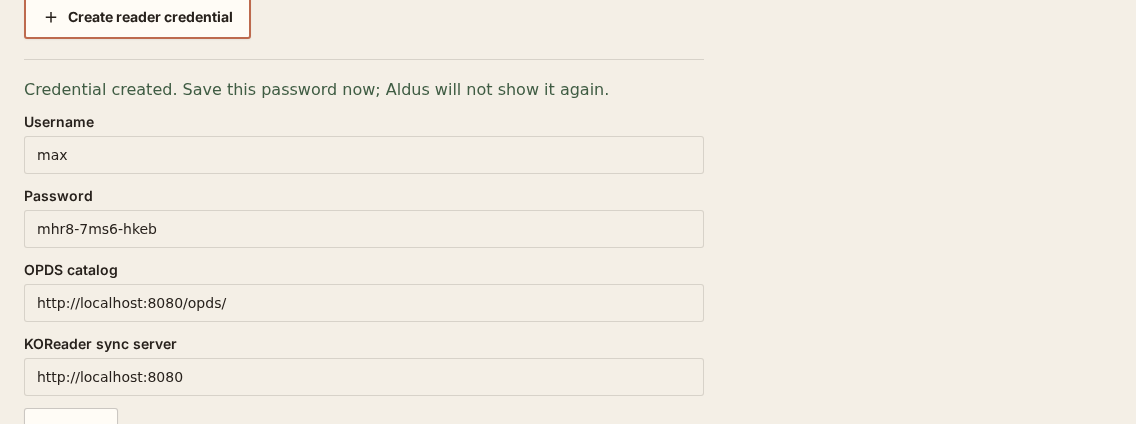
- Aldus shows the credential once: a Username (your own Aldus username), a generated Password, an OPDS catalog URL, and a KOReader sync server address. Save the password now — Aldus does not show it again.
A credential grants access only to your own libraries and reading progress, not the whole server, and each device should get its own so you can revoke one without affecting another.
Enter it into KOReader
Section titled “Enter it into KOReader”In KOReader, open the progress-sync plugin (menu names vary by version, but look for something like Settings → More tools → Progress sync, or a cloud/sync icon in the file browser toolbar). Choose to use a custom sync server rather than the default, then enter:
- Server address: the KOReader sync server value from Aldus — this is your server’s own address, not a separate sync endpoint.
- Username: your Aldus username.
- Password: the generated password from the credential you just created.
Once connected, KOReader will push and pull reading progress for books it recognizes as matching your Aldus library.
Under Progress sync → Document matching method, keep Binary — only identical files will be kept in sync selected. Aldus uses KOReader’s binary document identity. Filename matching is not supported because renamed files can otherwise move progress to the wrong book.
For the most reliable match, download the EPUB from Aldus’s OPDS catalog instead of converting or rebuilding it in Calibre. Moving or renaming that downloaded file is fine; changing its contents creates a different document identity.
Make sure KOReader can reach the server
Section titled “Make sure KOReader can reach the server”The address must be reachable from the e-reader. localhost and 127.0.0.1 point back to the reader itself and will not reach an Aldus server running on another computer.
- At home, use the server’s LAN address, such as
http://192.168.1.25:8080, only on a network you trust. - For access outside your home, use an HTTPS address from your reverse proxy or private VPN.
- From another device on the same network, open
<server-address>/healthcheck. A working Aldus server responds with{"state":"OK"}.
Do not expose an unencrypted HTTP server directly to the internet: reader credentials travel with every OPDS and progress request.
Verify progress sync
Section titled “Verify progress sync”- Open an EPUB downloaded from the Aldus OPDS catalog.
- Choose Progress sync → Push progress from this device now.
- Move to another page.
- Choose Pull progress from other devices now and confirm that KOReader reports the saved state.
Every recognized Aldus EPUB can keep native KOReader progress, even when it has no audiobook. If the EPUB also has a ready Aldus alignment, that exact XPointer is bridged to the shared read↔listen position. Aldus never turns the approximate percentage into a canonical position.
Troubleshooting
Section titled “Troubleshooting”- Cannot log in: create a fresh reader credential and enter the generated password, not your normal Aldus password. Check for accidental spaces.
- Cannot connect: replace
localhostwith a LAN or HTTPS address and verify<server-address>/healthcheckfrom another device. - No progress found: push once from the device, confirm Binary matching is selected, and use the exact EPUB bytes supplied by Aldus.
- Sync fails for only one book: download that title from OPDS again. If it still fails, the server host should check the Aldus log for a document-identity collision or unavailable media file.
- Certificate error: use a publicly trusted HTTPS certificate. Many e-readers cannot use a private or self-signed certificate without additional device configuration.
Keep it private
Section titled “Keep it private”The credential’s password grants access to your reading activity for as long as it’s valid — treat it the way you’d treat any password, and don’t share it or commit it anywhere.
Revoke a credential
Section titled “Revoke a credential”If a device is lost, replaced, or no longer used, open Account in Aldus, find it under KOReader and OPDS, and select Revoke. Access ends immediately; KOReader on that device will no longer be able to sync until you set it up again with a fresh credential.