
Owner
Everything an editor can do, plus managing members: inviting, removing, changing roles, and toggling the three acquisition permissions below. Only an owner can rename or delete the library, and only an owner can reach Library settings.
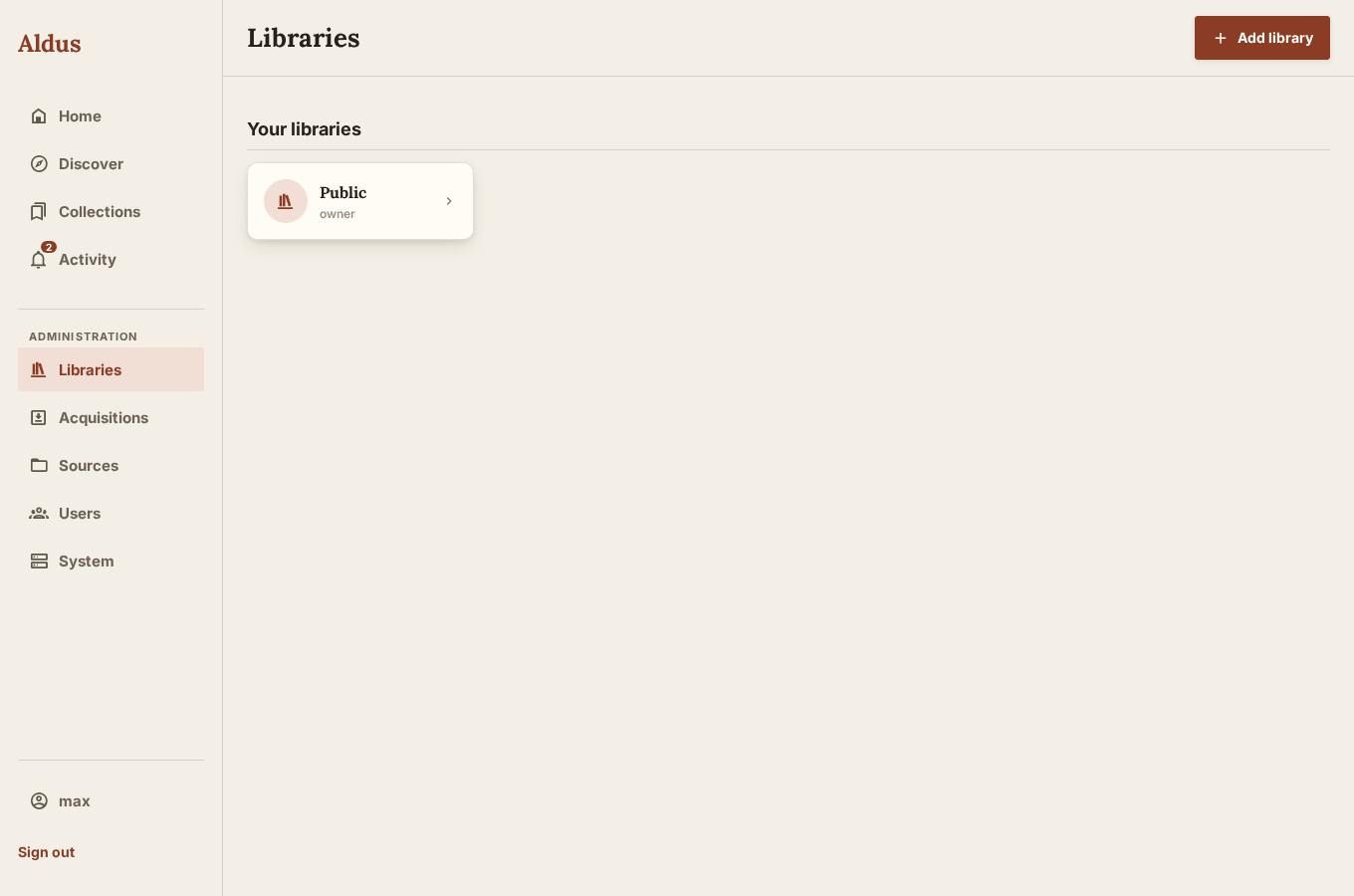
A library groups works, Sources, acquisition policy, and membership under one access boundary. It isn’t a storage folder — the same physical files can be scanned into different libraries by different Sources, and a library’s “storage” is really just the set of Sources and the one hidden managed-downloads folder attached to it. Most households need exactly one; add a second only when a specific set of members or a specific set of media genuinely needs to be kept separate — a kids’ library alongside a shared one, for example.
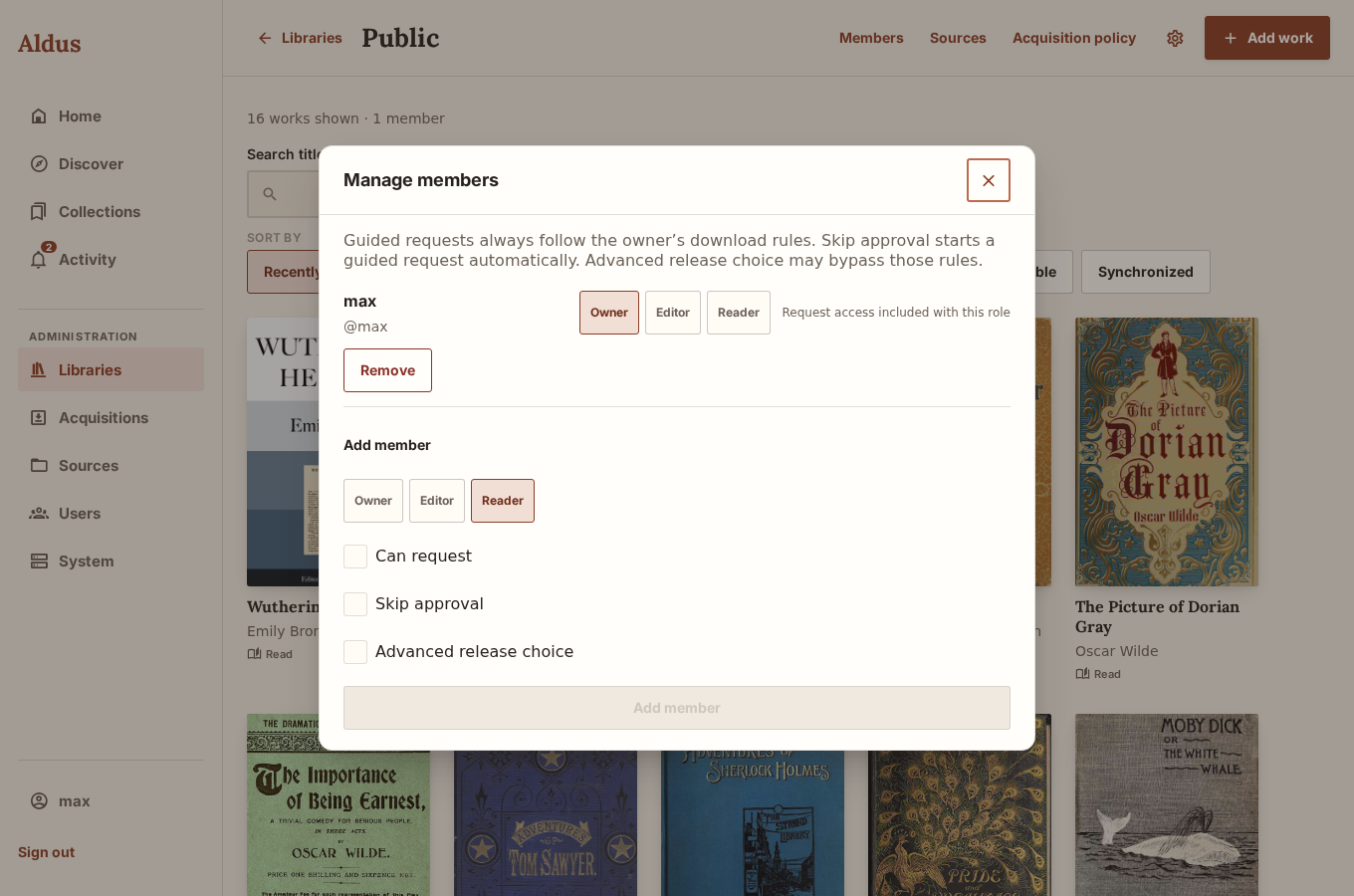
Every library member has exactly one role, and — unlike the acquisition permissions below — role changes take effect immediately with no separate confirmation step.
Owner
Everything an editor can do, plus managing members: inviting, removing, changing roles, and toggling the three acquisition permissions below. Only an owner can rename or delete the library, and only an owner can reach Library settings.
Editor
Adds and edits works, manages Sources and scans, and edits acquisition policy (default destinations, size limits, formats). Cannot manage members or delete the library.
Reader
Reads and listens. Requesting missing formats is off by default for a reader and is granted individually — see the three permissions below.
Aldus won’t let a library end up without an owner. Trying to demote or remove the last remaining owner is rejected outright, so a library can never accidentally become unmanageable.
These only apply to readers — owners and editors already have all three implicitly, and Aldus forces them on whenever you promote someone into either role. For a reader, each is an independent toggle:
If a household runs more than one library, membership is additive by default — belonging to two libraries means you see both. An exclusive access grant changes that: once any account holds an exclusive grant on any library, that account’s visibility becomes the union of only its exclusive memberships, dropping any library it belongs to non-exclusively. This is how you carve out a library that’s genuinely private to a subset of the household — a kids’ account with an exclusive grant on a curated library won’t also inherit the shared collection through an ordinary membership. The toggle only appears once a server has more than one library, since it has nothing to do with a single-library setup.
A library can only be deleted once it contains no works — Aldus refuses the delete otherwise, so you can’t lose books by clicking the wrong button.